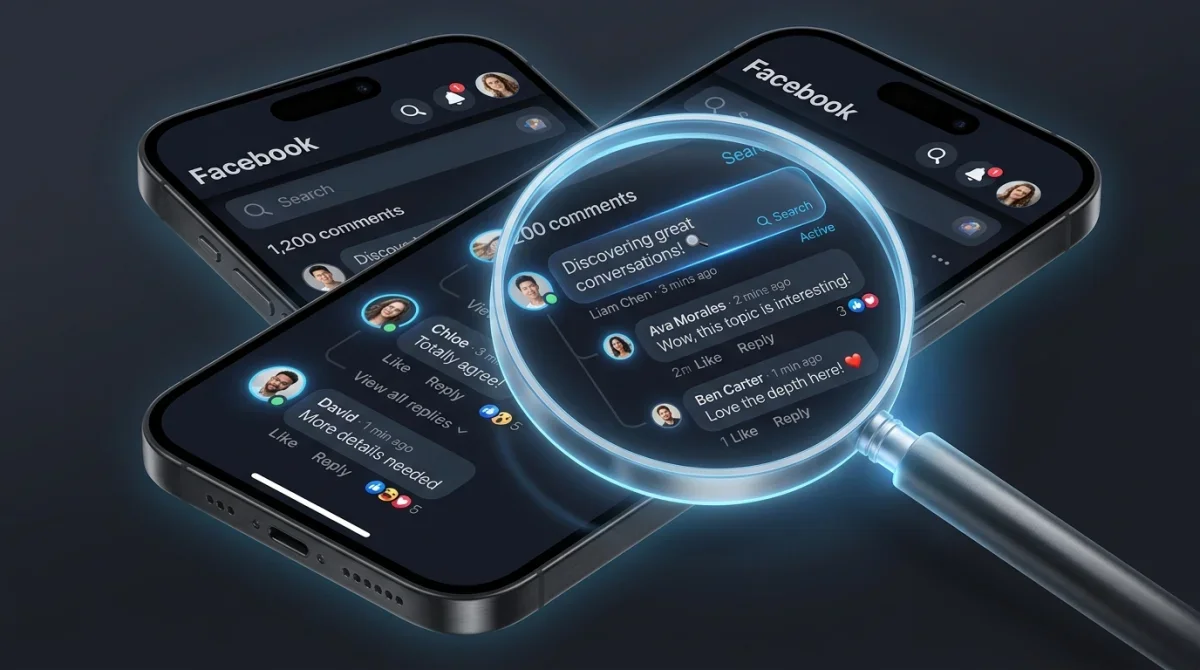


Quick answer: open Ads Manager, click the Ads tab, find your ad, click Edit below the ad name, then click the ··· next to your ad and select More options → Manage Facebook comments (or Instagram comments, or Threads replies, depending on where the ad is running). A pop-up opens showing every reaction, comment, and reply on that ad — directly from Meta's own current interface. That's the fast version. The rest of this guide covers the alternate path that still works for boosted posts, what to do once you're looking at the comments, how to stop spam before it appears, and the problems people actually run into.
Method 1: The Current Official Way (Ads Manager → Manage Comments)
This is Meta's own documented current method, as of their latest Ads Manager interface:
- Open Ads Manager.
- Click the Ads tab, find your ad, then click Edit below the ad name.
- In the column on the left, select the ··· to the right of your ad name.
- Select More options. Depending on your ad's objective and where it's running, you'll see Manage Facebook comments, Manage Instagram comments, and/or Manage Threads replies — only the options relevant to that specific ad appear.
- A pop-up opens showing your ad along with any reactions, comments, or replies.
From that pop-up, on Facebook you can like a comment, reply to it directly, or select the ··· next to any comment to hide or report it — the same actions are available for Instagram and Threads, minus the like/reply option which is Facebook-specific.
Important caveat straight from Meta: you can't manage Instagram comments on an ad if you're running it under your Facebook Page identity without a connected Instagram account, and you can't manage Threads replies without a connected Threads profile. If the option is missing, this is almost always why.
These same comments are also reachable outside Ads Manager entirely — via Notifications on Facebook, and via Notifications on Instagram and Threads, which is often faster if you're just checking in rather than actively managing a campaign.
Method 2: View the Underlying Post's Comments Directly
Before the current Ads Manager panel, and still valid for ads that are boosted from an existing Page post, this older path is worth knowing because plenty of ad accounts still default to it:
- Go to Ads Manager.
- Click the All Campaigns dropdown and select All Ads.
- Click the name of the ad you want to check — this opens an ad preview on the right side.
- Click the ad preview to open the full Ad Preview.
- Select View post permalink with comments (sometimes labeled "See post") — this opens the actual Facebook post the ad is running from, comments and all, in a normal Facebook post view.
The distinction that matters here: this only works for ads that are boosted from a real, existing Page post. A dark post — an ad created directly in Ads Manager that was never published to your Page — has no public post permalink to view this way, which is exactly why Method 1's in-Ads-Manager panel exists: it works for dark posts too.
Viewing Comments on Instagram and Threads Ads
The same "Manage [platform] comments" panel from Method 1 covers Instagram and Threads, with one hard requirement: the account has to actually be connected.
- For Instagram: add an Instagram account to your business portfolio and connect it to your Facebook Page before Instagram comment management becomes available.
- For Threads: connect a Threads profile — without it, Threads reply management won't appear as an option, even if the ad is running on Threads.
Proactive Moderation: Stop Spam Before It Shows Up
Reading comments after the fact only gets you so far — Meta's own tools let you filter proactively, at the Page or account level, and the filtering extends automatically to ads run from that Page or account:
- Facebook: Profanity Filter. Found under your Page's Settings. Turning this on hides comments containing profanity or words you specify — applies to every ad and post from that Page, not just one campaign.
- Instagram and Threads: Hidden Words. The equivalent keyword-blocking control for those platforms, set at the account level.
- Comment ranking. A separate Facebook Page setting that deprioritizes low-quality or spammy comments without fully hiding them — worth turning on alongside the profanity filter, not instead of it.
Should You Hide or Delete a Bad Comment?
| Action | What actually happens | When to use it |
|---|---|---|
| Hide | Comment disappears for everyone except the person who posted it (they don't know it's hidden) | Spam, mild negativity, off-topic noise — anything you'd rather not escalate |
| Delete | Comment is fully removed for everyone, including the poster | Genuinely abusive content, harassment, or anything violating Community Standards |
| Report | Flags the comment to Meta for review, separate from hiding it on your end | Content that may violate platform policy beyond just being unwanted on your ad |
| Reply publicly | Keeps the comment visible but adds your response underneath it | Legitimate criticism or a real question — hiding these tends to look worse than answering them |
Hiding is almost always the better first move for anything short of genuine abuse — deleting a critical-but-legitimate comment tends to get screenshotted and shared as "look what they're hiding" far more often than a hidden one ever does, since the original poster has no way to know it was hidden rather than simply not gaining traction.
Common Problems People Run Into
- "I don't see any comments at all." Check whether the ad actually has any yet — a brand-new ad or one running to a very narrow audience may genuinely have zero comments, which isn't a bug. If you're sure there should be some, confirm you're looking at the right ad (not a different ad set) and that you have admin-level access to the Page or ad account.
- "Manage Facebook comments isn't showing up in the menu." This option only appears when relevant — an ad with no comments, reactions, or replies yet may not show a "Manage" option at all until there's something to manage.
- "I can't manage Instagram/Threads comments even though the ad is running there." This is almost always the connected-account requirement — go back and confirm the Instagram or Threads account is actually linked to the Page or ad account running the campaign.
- "Comments disappeared after I edited the ad." Significant edits to an ad (not just budget/schedule tweaks) can sometimes reset it as a new ad review, which can affect which comment thread you're viewing — check whether you're now looking at a new version of the ad rather than the one that had the original comments.
Why the Comments You're Checking Actually Matter
Here's the part worth sitting with for a second: the entire reason to go looking for comments on your ad is that they're doing real work — for better or worse. A thread full of genuine questions and positive reactions builds trust with everyone else who scrolls past it; a thread that's either silent or full of unanswered complaints does the opposite, regardless of how good the ad creative itself is. Checking comments isn't just moderation hygiene — it's reading the single clearest signal of how your ad is actually landing with real people.
That cuts both ways. If you're checking a new ad's comments and finding nothing there yet, that's not just an empty inbox — it's a blank trust signal for anyone who lands on the ad next. CommentsHero exists for that specific gap: real initial comment activity on a new ad so there's something genuine to see — and, just as importantly, something for you to actually moderate and respond to — instead of a silent comment section that gives potential customers nothing to go on. If your real goal is getting more (and better) comments to manage in the first place, this guide on boosting comment rates on Facebook ad campaigns covers that side directly, and if you'd rather automate first-response replies once the volume grows, this breakdown of automating Facebook ad comment replies is the natural next step.
Quick Reference Checklist
- ☐ Ads Manager → Ads tab → Edit → ··· → More options → Manage [platform] comments
- ☐ For boosted Page posts specifically, try Ad Preview → View post permalink with comments as a backup path
- ☐ Connect Instagram/Threads accounts if those management options are missing
- ☐ Turn on the Profanity Filter (Facebook) and Hidden Words (Instagram/Threads) proactively
- ☐ Turn on Comment Ranking alongside the profanity filter
- ☐ Hide first, delete only for genuine abuse, reply publicly to legitimate criticism
- ☐ Check new ads even when you expect zero comments — an empty thread is still worth noticing
Frequently Asked Questions
How do I see comments on a Facebook ad?
Open Ads Manager, click the Ads tab, find your ad, click Edit, then select the ··· next to the ad name and choose More options → Manage Facebook comments. A pop-up shows every comment, reaction, and reply on that ad.
Why can't I see the "Manage comments" option on my ad?
This option only appears when relevant to that specific ad — it may not show up if the ad has no comments, reactions, or replies yet, or if you're viewing Instagram/Threads options without a connected account for that platform.
Can I view comments on a dark post ad?
Yes — dark posts (ads created directly in Ads Manager with no public Page post) don't have a viewable permalink the way boosted posts do, but the in-Ads-Manager "Manage comments" panel works for them directly, which is exactly the case it's built for.
Can I turn off comments on a Facebook ad entirely?
Yes, through the ad's comment management options you can disable commenting on a specific ad, which prevents any new comments from being added — existing comments and your ability to view them aren't affected by this.
Do I need to connect Instagram to see comments on my Instagram ads?
Yes. If you're running the ad under your Facebook Page identity without a connected Instagram account, Instagram comment management won't be available — the account has to be added to your business portfolio and connected to the Page first.
What's the difference between hiding and deleting a comment?
Hiding removes a comment from public view while leaving it visible to the person who posted it (they aren't notified it's hidden). Deleting removes it entirely for everyone, including the original poster.
Does the profanity filter apply automatically to my ads?
Yes — the profanity filter (Facebook) and Hidden Words (Instagram/Threads) are set at the Page or account level and extend automatically to any ads run from that Page or account, not just organic posts.
Can I reply to comments on my Facebook ads?
Yes, directly from the same "Manage Facebook comments" pop-up in Ads Manager — you can like or reply to comments there the same way you would on a regular Page post.
Why does an ad with zero comments still matter to check?
A brand-new ad or a very narrow-audience ad may genuinely have no comments yet, which isn't an error — but it's also worth noting as a trust gap, since a silent comment section gives potential customers nothing to go on when deciding whether to trust the ad.
Where else can I check ad comments besides Ads Manager?
Notifications on Facebook, and Notifications on Instagram and Threads, surface the same comment activity without needing to open Ads Manager at all — often faster for a quick check-in.
Final Thoughts
The fastest path is Ads Manager's own "Manage comments" panel — it works for every ad type including dark posts, covers Facebook, Instagram, and Threads in one place, and lets you like, reply, hide, or report without leaving the pop-up. The older "view post permalink" route still works for boosted Page posts specifically and is worth knowing as a backup. Either way, checking in regularly matters beyond moderation — the comments on an ad are one of the clearest, most honest signals of how it's actually landing.
Want your next ad's comment section to have something genuine worth checking from day one? Get started with CommentsHero and give it real engagement to work with.