


A digital creator recently posted a query to their 50,000 followers, looking for feedback on a new product release. Within minutes, notifications began flooding their screen: '+10 comments, +50 comments, +100 comments.' But when they opened the post to respond, the screen was practically empty—showing only two lone replies. It wasn't a software glitch, and the comments hadn't been deleted. They were simply swallowed by Facebook's default comment filtering system. Whether you are an everyday user trying to find a past conversation you started, or a page administrator watching customer inquiries vanish into a hidden queue, managing Facebook comments can feel like fighting an invisible algorithm. This comprehensive guide will demystify how the platform filters discussions, providing step-by-step solutions to find your comment history, troubleshoot visibility issues, and leverage comment management to grow your online presence.
The Facebook Comment Visibility Puzzle
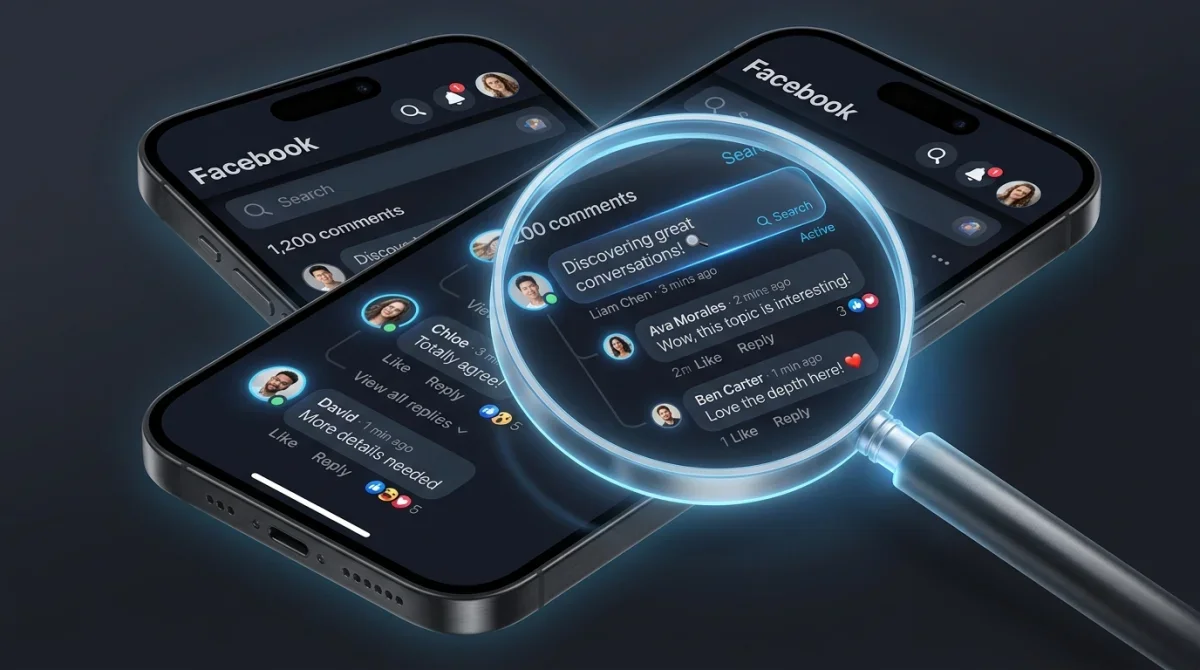
If you have ever scrolled through a popular Facebook post, you have likely noticed a discrepancy between the comment count displayed below the post and the actual number of comments you can read. A post might boast "150 Comments," yet when you click to expand the thread, only a dozen or so are visible. This mismatch is not a simple software bug; it is the result of a deliberate, algorithmic filtering system designed by Facebook to prioritize what it deems high-quality interactions. By default, Facebook applies the "Most Relevant" filter to comments on public pages and high-engagement posts. While this filter is intended to reduce spam and highlight meaningful discussions, it often ends up hiding legitimate feedback, customer questions, and genuine community interactions. For everyday users, this UI choice makes it incredibly difficult to follow conversations. For page owners, it poses a direct threat to engagement, brand reputation, and organic reach. Understanding how these filters work is the first step in solving the visibility puzzle and taking control of your social footprint on the web. By utilizing strategic commenting, brands can cultivate a discoverable, quotable footprint. For a deeper look at how this process operates in practice, learning how Facebook comments that earn quality backlinks work can break down the mechanics of turning social threads into powerful off-page authority signals. Alternatively, if you want to quickly boost your page visibility, you can choose to buy facebook comments to build initial traction.
How to See All Comments on Any Facebook Post
To fully participate in or monitor a discussion on Facebook, you need to bypass the platform's default filtering and force the interface to display every single response. Whether you are using a desktop computer or browsing on a mobile device, adjusting these settings is straightforward once you know where to look.
Bypassing the "Most Relevant" Default
Facebook's default sorting method uses machine learning models to score comments based on factors like the commenter's relationship to the page owner, the number of likes or replies a comment has received, and whether the text contains keywords indicating high value. Unfortunately, this algorithmic sorting frequently pushes valuable micro-discussions to the bottom or hides them entirely. To see every comment without any filters, you must manually change the sorting options. The platform offers three primary views: "Most Relevant" (the filtered default), "Newest" (which displays all comments in chronological order), and "All Comments" (which reveals the complete thread including potential spam or low-score replies). Switching to "All Comments" is the key to bypassing the algorithm's control.
Step-by-Step for Desktop Users
If you are accessing Facebook via a web browser on a desktop or laptop computer, follow these precise steps to reveal hidden comments:
- Navigate to the post you want to read. Make sure you are viewing the post in its expanded form by clicking the timestamp or the comment icon.
- Scroll down to the comment section directly below the post copy.
- Look for the small dropdown menu located just above the first comment. By default, this button will display the text "Most Relevant" with a small downward-facing arrow next to it.
- Click the "Most Relevant" dropdown menu to open the list of sorting options.
- From the dropdown list, select "All Comments". (Note: If "All Comments" is not visible, select "Newest", which will also force the system to display unfiltered chronological replies).
- The page will briefly reload the comment section. Scroll down, and you will notice that previously hidden comments and collapsed reply threads are now visible on your screen.
Step-by-Step for Mobile App (iOS & Android)
For users browsing on the Facebook mobile app, the steps are slightly different due to the mobile UI layout, but the logic remains the same:
- Open the Facebook app on your iOS or Android device and locate the target post.
- Tap the "Comments" button below the post to open the comment sheet or full-screen viewer.
- Directly below the post image or text, look for a small grey text label that says "Most Relevant" (often accompanied by a small filter icon).
- Tap the "Most Relevant" label. A menu will slide up from the bottom of your mobile screen.
- Tap the option labeled "All Comments". On some versions of the app, this may be listed as "Show All Comments".
- The comment feed will refresh instantly, displaying the complete history of interactions on the post, including nested replies.
Why "Newest" Doesn't Always Show Everything
It is a common misconception that switching to the "Newest" sorting method will solve all visibility issues. While "Newest" displays comments chronologically, it is still subject to real-time moderation and background system filters. If a comment contains flagged keywords, links that trigger spam protection, or is left by an account with low trust signals, the Facebook API may withhold that comment from the "Newest" feed entirely. Furthermore, API caching delays can cause newly submitted comments to take several minutes to propagate to all users. Therefore, if you are looking for absolute completeness, "All Comments" is the most reliable setting to choose, as it forces the browser to query the database for all records that have not been explicitly deleted or placed in a private admin queue.
How to Find Your Own Comment History (Activity Log)
As you browse Facebook, you likely leave comments on a wide range of posts, including friend's photos, public news articles, group discussions, and promotional ads. Over time, keeping track of these micro-interactions becomes impossible without tools. Fortunately, Facebook provides a dedicated control panel called the Activity Log, which acts as a database of every action you have taken on the platform since your account's creation.
Why You Might Need Your Comment History
There are several scenarios where accessing your past comment history is incredibly valuable. Perhaps you left an insightful comment on a thread and want to find it to copy the text for a blog post or professional newsletter. Maybe you engaged in a heated debate and want to find the post to delete your comments and de-escalate the situation. Alternatively, you might have commented on an ad or a product post weeks ago, planning to purchase the item later, but lost the link. Using the Activity Log allows you to re-trace your digital steps, edit past errors, and manage your online reputation with ease.
Navigating the Activity Log on Mobile
The Activity Log is accessible on both iOS and Android devices, though the path requires navigating through the account settings menu.
iOS Instructions
- Open the Facebook app on your iPhone or iPad.
- Tap your profile picture in the bottom right corner (the Menu button).
- Scroll down and tap "Settings & Privacy", then select "Settings" from the expanded menu.
- Scroll down to the section labeled "Your Information" and tap on "Activity Log".
- Within the Activity Log interface, scroll down and tap the dropdown arrow next to "Your Activity Across Facebook".
- Select "Comments and Reactions", then tap on "Comments". You will see a chronological list of every comment you have made.
Android Instructions
- Open the Facebook app on your Android smartphone or tablet.
- Tap the three horizontal lines (Menu) in the top right corner.
- Tap the gear icon (Settings) in the top right.
- Scroll down to "Your Information" and tap "Activity Log".
- Tap the "Manage Your Activity" button at the top, or expand "Your Activity Across Facebook".
- Select "Comments". The app will display a clean list of your comments, sorted by date, with options to delete them individually or in bulk.
Accessing the Activity Log on Desktop Browser
Accessing your comment history on a desktop web browser is the fastest method, especially if you need to review a large volume of activity:
- Open your web browser, navigate to Facebook, and log in to your account.
- Click on your profile picture in the top right corner of the screen.
- Select "Settings & Privacy" from the menu, then click "Activity Log".
- On the left-hand sidebar of the Activity Log page, click on "Your Activity Across Facebook" to expand the submenus.
- Click on "Comments and Reactions", and then select "Comments".
- The main panel will now display a detailed list of your comments. You can click on the three dots icon next to any comment to view the original post, edit the comment, or delete it permanently.
Accessing and Managing Past Content
Once you locate a past comment in your Activity Log, Facebook gives you the option to either edit the text or delete it entirely. It is important to understand the implications of both choices. Editing a comment keeps the existing thread structure intact, but Facebook will display an "Edited" label next to the timestamp, which other users can click to view the edit history. If you want to correct a minor typo while maintaining the conversation, editing is the best approach. However, if you want to completely remove your association with a post or remove sensitive information, deletion is the only safe option. Deleting a comment removes it entirely from the public thread, along with any direct replies that were nested beneath it, ensuring that no trace remains in search indexes or public feeds.
Why Are Comments Not Showing Up? (Advanced Troubleshooting)
Sometimes, even after switching your sorting settings to "All Comments," you may still find that comments are missing, or that friends report they cannot see the comment you just left. This issue points to advanced backend filtering, moderation rules, or software cache conflicts that occur behind the scenes.
Facebook's Aggressive Spam Filters & Shadowbanning
To protect its ecosystem from malicious actors, Facebook employs automated spam detection algorithms that run constantly in the background. If you post comments too quickly (a behavior associated with bots), share the same link across multiple threads, or use language that resembles promotional spam, the system will flag your account. In many cases, Facebook applies a mechanism known as "shadowbanning." When you are shadowbanned, your comment remains perfectly visible to you when you are logged in, leading you to believe it is live. However, the comment is hidden from every other user on the platform. This is a common issue when brands try to scale their outreach too quickly without understanding platform limits. If you suspect you are shadowbanned, try viewing the post from an incognito browser window or asking a friend to check the thread to confirm if your comment is visible to the public.
Page Admin Moderation and the "Comment Queue"
Every business page on Facebook has access to moderation tools that allow admins to control what appears on their timeline. Admins can configure their settings to automatically hold comments for review. If a comment is held, it is placed in a private "Comment Queue" where it remains hidden from the public until an admin manually approves it. Page owners use this feature to filter out customer service complaints, aggressive competitors, or inappropriate language. If your comment is missing from a public page, it is highly likely that it triggered a moderation filter and is awaiting review in the admin dashboard. This is why maintaining a professional, respectful tone is critical when participating in community discussions.
App Cache Issues (And How to Clear Them)
As you use the Facebook app, it downloads large amounts of temporary data (caches) to speed up loading times. Over time, these cache files can become corrupted, leading to display glitches, including missing comment counts or comments failing to load entirely. If you are experiencing persistent comment visibility bugs, clearing your app cache is a quick and effective fix. On Android, you can go to Settings > Apps > Facebook > Storage and tap "Clear Cache". On iOS, the easiest way to clear the cache is to uninstall the Facebook app and reinstall it fresh from the App Store. This forces the app to rebuild its database and retrieve the most up-to-date comment feeds directly from Facebook's servers.
The Impact of Blocked Keywords
Facebook allows page administrators to upload a list of blocked words, phrases, and emojis. Any comment containing a word on this list is automatically hidden the moment it is posted. The commenter will still see their post, but the general public will not. This feature is widely used by brands to block profanity, spam terms, or competitor names. If you notice your comments are repeatedly disappearing on a specific page, review your vocabulary. You may be using a common word that has been blacklisted by that page's administrator to prevent spam or keep discussions on-topic.
For Page Admins: Mastering Comment Management
For business owners, social media managers, and creators, comments are far more than just casual replies. They are a direct metric of customer engagement, a source of valuable feedback, and a powerful engine that drives Facebook's organic distribution algorithm. Mastering comment management is essential for building a loyal community and growing your brand's reach.
How Hidden Comments Hurt Your Page's Reach
Facebook's news feed algorithm is built around "meaningful social interactions." The system rewards posts that spark active discussions, prioritizing threads where users leave detailed replies and engage in back-and-forth conversations. When Facebook's default filters hide comments, it directly hurts your organic reach. If users cannot see past questions, they are less likely to leave their own, causing the conversation to dry up. Furthermore, hidden customer questions can lead to missed sales opportunities and poor customer service reviews. As a page admin, you should proactively configure your page settings to keep the comment section as open and active as possible, ensuring that every legitimate user voice is visible to the community.
The Psychology of Social Proof in Comment Sections
In marketing, "social proof" is the psychological phenomenon where people look to the behavior of others to guide their own decisions. A post with a high volume of active, visible comments acts as a powerful trust signal. When a prospective customer visits your page and sees dozens of users asking questions, sharing positive experiences, and interacting with your team, they instantly perceive your brand as credible and popular. Conversely, a quiet comment section can make your business appear abandoned or untrustworthy. By actively encouraging and managing comments, you create a vibrant environment that naturally builds trust and drives conversions. If you want to dive deeper into this concept, read our detailed analysis on why your Facebook posts get no comments to diagnose and resolve the specific issues holding your community back. Once you establish why your feed is quiet, you can use tactical methods to turn Facebook likes into real comments, engaging reactions into active dialogues.
Strategies to Boost Quality Engagements
Building an active, high-volume comment section requires a proactive strategy. You cannot simply publish updates and hope that users decide to reply; you must design your content and interaction patterns to invite discussion.
Asking the Right Questions and Structuring Content
The simplest way to get a comment is to ask for one. However, generic questions like "What do you think?" rarely generate high-quality replies. Instead, ask specific, open-ended questions that tap into your audience's expertise or personal experiences. For example, instead of asking "Do you like our new product?", try asking "What is the biggest challenge you face with [industry problem], and how would our new feature help you solve it?". This invites users to write detailed, meaningful responses, which signals to the algorithm that your post is highly valuable, boosting your organic visibility. To get started, try using specific Facebook hooks that actually spark replies, which contain tested copy formulas designed to break through feed noise. You can write posts that demand a reply by choosing formats that invite interaction. Additionally, timing plays a critical role. If you publish when your target audience is asleep, it will quickly sink. Check the best time to post on Facebook to ensure your posts launch when your community is most active.
Leveraging Engagement Services
For new brands, small businesses, or pages launching a new product, generating that initial wave of comment activity can be incredibly difficult due to the "empty room" effect—users are hesitant to be the first to comment on a post. In these scenarios, page administrators can proactively choose to buy custom facebook comments from professional engagement services to establish a baseline of activity. Having a foundation of activity makes organic visitors feel safe and encouraged to join the conversation, allowing you to buy real facebook comments that trigger the algorithm's positive feedback loops. Furthermore, you can use these resources to boost comment rates on Facebook ads, raising your click-through rates and reducing acquisition costs. You can study how social proof builds trust to understand the psychological mechanisms behind this phenomenon. To learn how to execute this process without running out of steam, you can follow a checklist to turn one Facebook post into weeks of engagement. This structured approach allows small marketing teams to produce a high volume of quality content without needing a massive budget. Implementing a comment-first Facebook strategy is the best way for small brands to maintain a consistent message across channels.
Frequently Asked Questions (FAQ)
Can I search for someone else's comments on a post?
Facebook does not offer a native search bar within the comment section of individual posts. However, you can use your browser's search function (Ctrl+F on Windows or Cmd+F on Mac) to search for specific words or usernames. To do this, you must first switch the comment filter to "All Comments" and scroll down to ensure the entire comment thread is loaded on your screen. Alternatively, third-party social listening tools can index and search public comment feeds for specific keywords or users.
How do I see comments I made on Facebook ads?
Comments made on Facebook Ads are tracked differently than standard posts. The most reliable way to see comments on Facebook ads you have previously interacted with is through your Activity Log. Navigate to your Activity Log, select "Your Activity Across Facebook," and click "Comments." Clicking the link in the entry will take you directly to the ad creative where your comment is posted. If you are a page admin looking to keep your promotional campaigns clean, knowing the best practices for handling negative comments on Facebook ads is essential to protect your conversions.
Why does the comment count say 5, but I only see 2?
This common discrepancy occurs for two main reasons. First, Facebook's "Most Relevant" filter may be hiding the other 3 comments because the algorithm classified them as low-quality or potential spam. Switching to "All Comments" will usually reveal them. Second, some comments may have been deleted by the author or hidden by the page administrator. In these cases, the overall comment count cached in Facebook's database is slow to update, creating a mismatch between the displayed count and the actual comments available on the server.
Does hiding a comment notify the user?
No. When a page administrator hides a comment on Facebook, the user who wrote the comment is not notified. The comment remains visible to the author and their direct Facebook friends, so they do not realize they have been moderated. However, the comment is completely hidden from the general public. This allows administrators to manage spam or negative behavior quietly without provoking further arguments or user backlash.
Conclusion & Next Steps
Navigating the complexities of Facebook's comment system is crucial for anyone looking to maximize their social authority and maintain a clean digital footprint. Whether you are an everyday user trying to find a past conversation through your Activity Log, or a page owner striving to bypass algorithmic filters to engage your audience, understanding these settings gives you full control over your social experience. Now that you know how to see all comments and manage your interactions, take a moment to audit your latest posts. Implement strategies to drive discussions, actively moderate spam, and watch your social engagement grow.